View Sites and Site Information on the Mobile App
One of the useful features in Unity RM is the ability to view sites, measurement graphs, and attachments in the field using the Unity RM mobile app.
|
|
 PREREQUISITES:
- Download the Unity mobile app to your device from the Android Play or the Apple App Store.
- Log in to Unity using your username and password. See Log In to Your Unity RM Instance for more information.
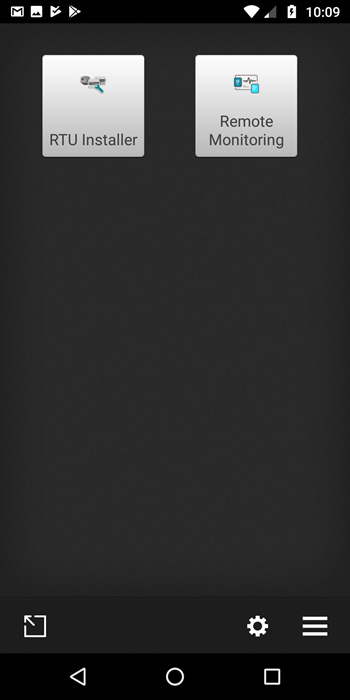
- Once you log in, if the app selection screen opens, tap the Remote Monitoring app.
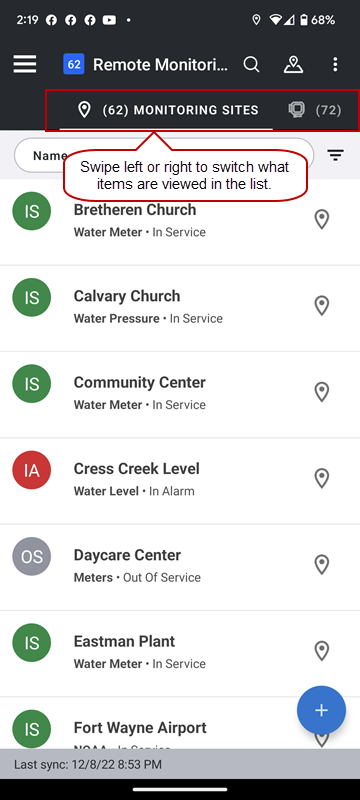
The list of monitoring sites in your organization displays first. You can switch between viewing monitoring sites, RTUs, etc. by swiping left or right and tapping the desired option.
- Tap the map to switch to the map. Tap the back arrow to return to the list of sites.
- Tap a site to view details about the site on the General tab.
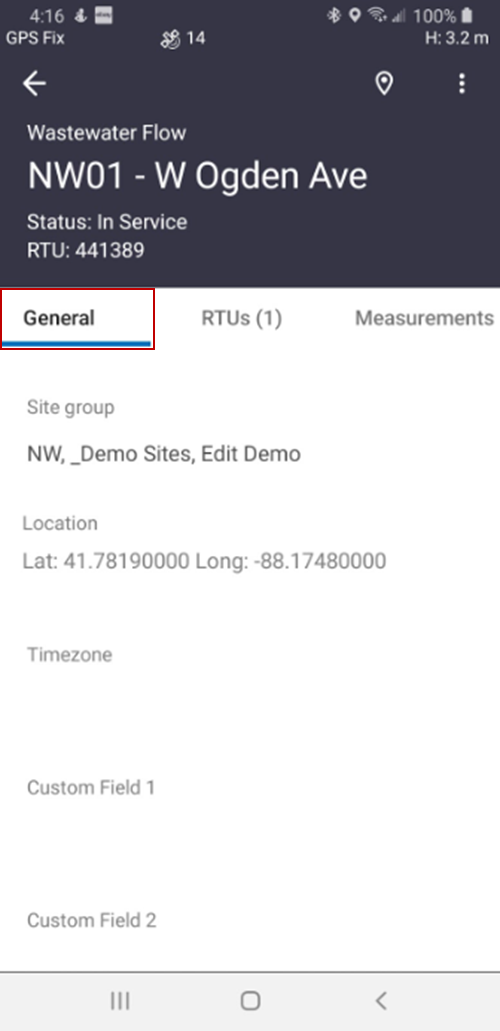
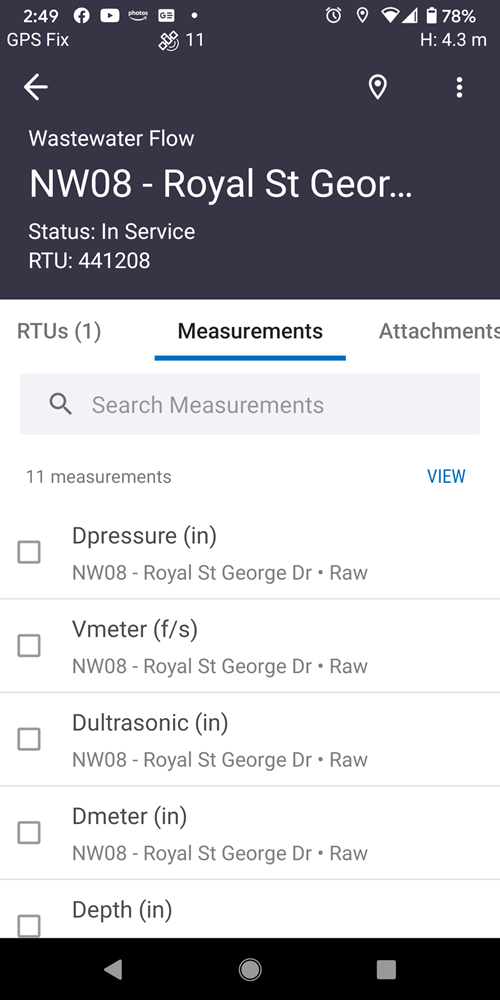
- Tap the Measurements tab to view the list of measurements.
- Tap View to open the default report for the site.
- Alternatively, tap to select a set of measurements from the list, then tap View. The graph will automatically rotate to a landscape view and will display the selected measurement data from the last 24 hours.
 BEST PRACTICE: Enable the screen rotation on your device to view the graph in landscape view.
- Tap and drag your finger along the graph to display the tooltips.
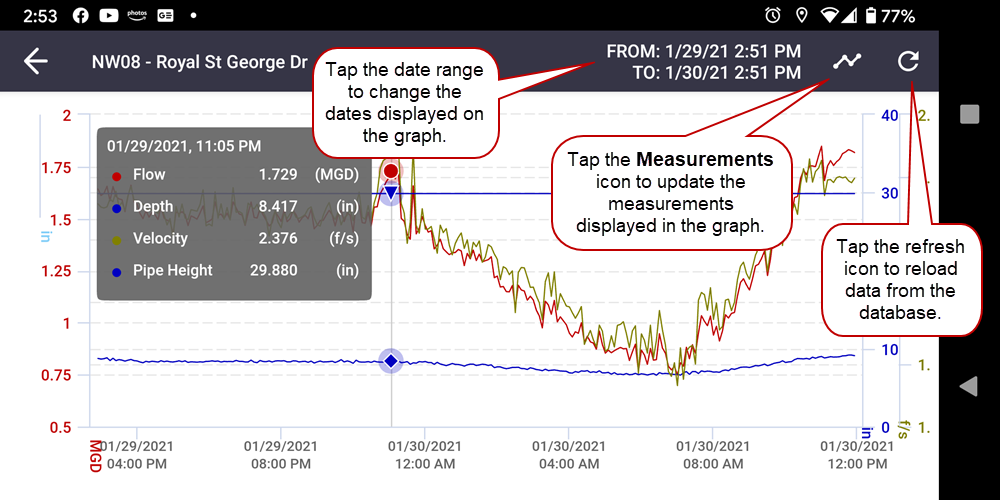
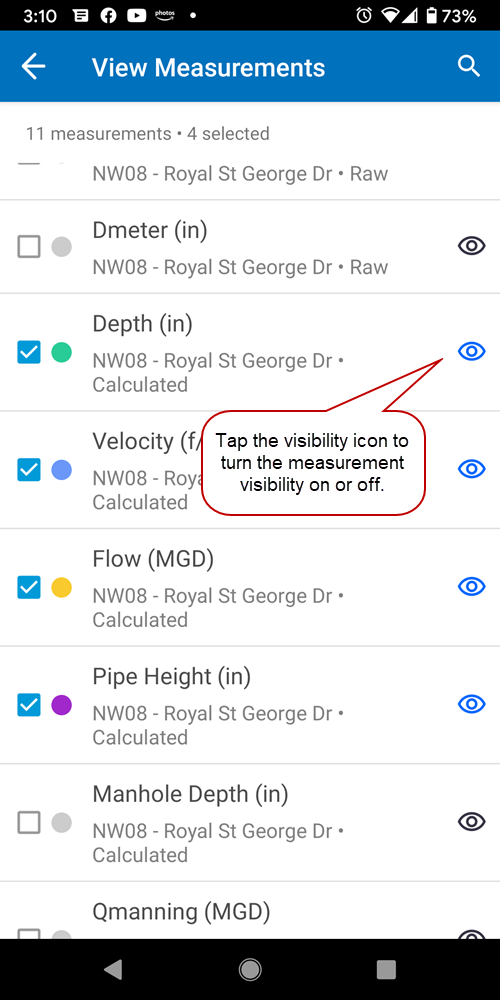
- Tap the Measurements icon to edit the set of selected measurements and update the graph.
- Tap the visibility icon to turn the measurement visibility on or off.
- Tap the arrow in the upper-left corner to return to the graph.
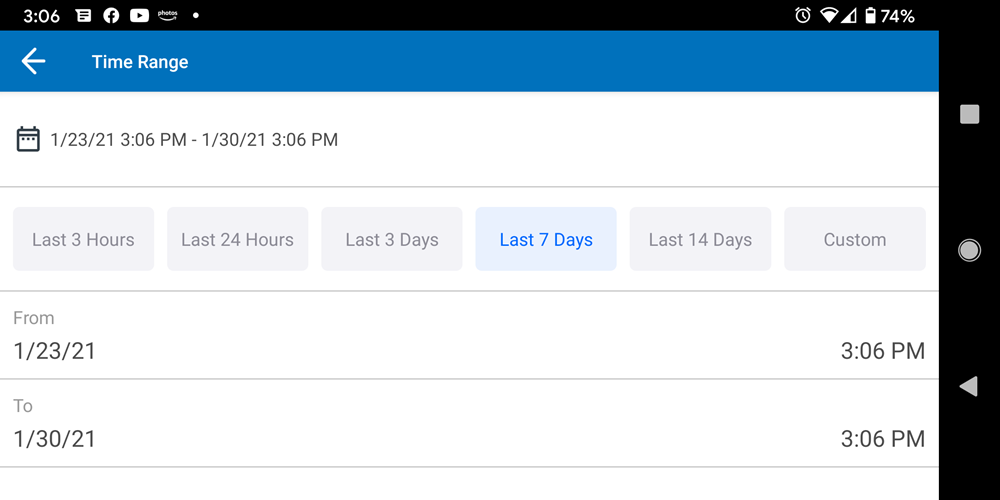
- Tap the date range on the graph to update the dates, or the From and To fields to enter a custom date range.
- Tap the arrow in the upper-left corner to return to the graph.
- Zoom in and out on the graph using a pinching motion.
- To pan around the graph, use two fingers to tap and drag.
- When zoomed in on the graph, tap the zoom control button to go to the last zoom, next zoom, or reset the zoom.
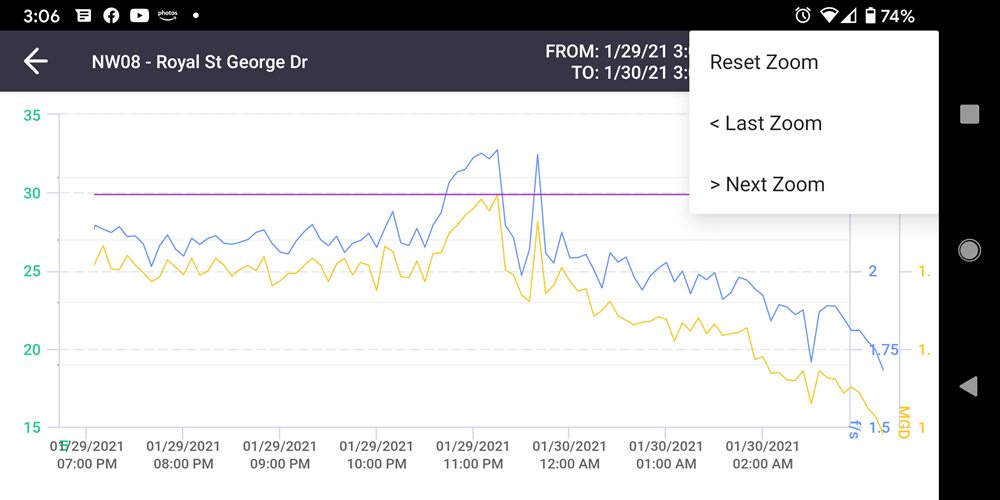
- Tap the arrow in the upper-left corner of the graph to return to the Measurements list.
- Tap the Attachments tab to view and upload attachments.
 NOTE: Mobile does not support folders, therefore, all attachments are shown in a list. Any new attachments including site photos that are added through the mobile app will be uploaded to the default folder of the site during the next sync. See About the Monitoring Site Details for more information.
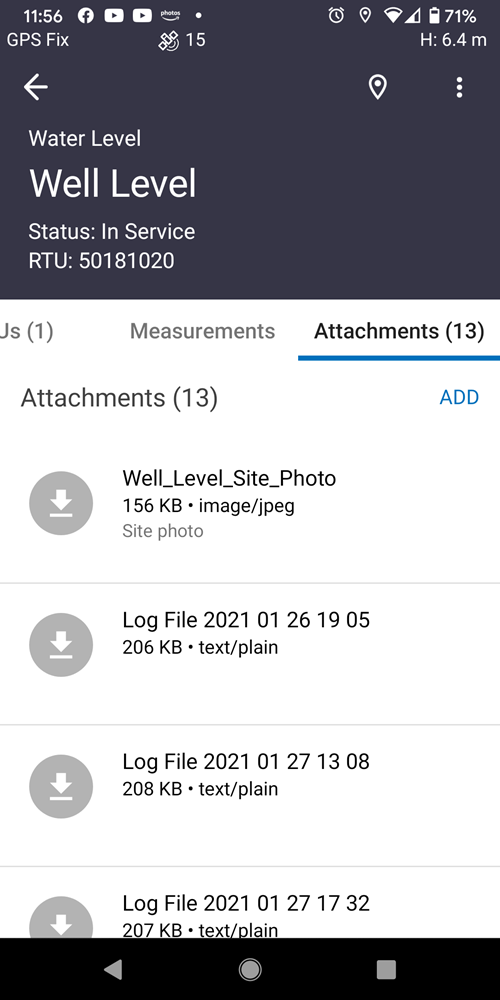
- Tap Add then select the attachment type to add an attachment.

- Tap an existing attachment to download the attachment.
- Tap the Alarms tab to view the last 30 days of alarms. If the alarm is still active, they will appear in red. If they are not, they will appear in green. Use the filter icon to filter by the type of alarm, status of the alarm, or the measurement the alarm applies to.
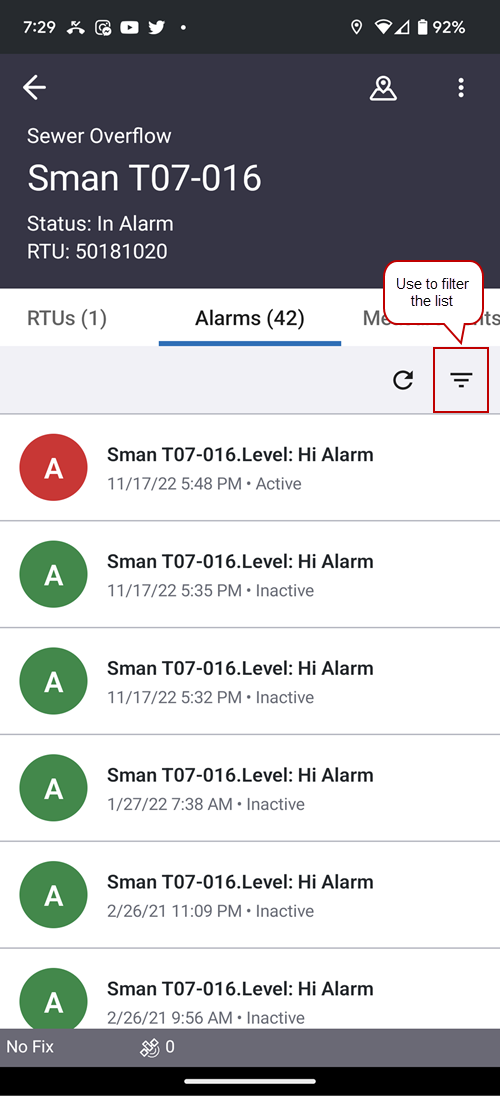
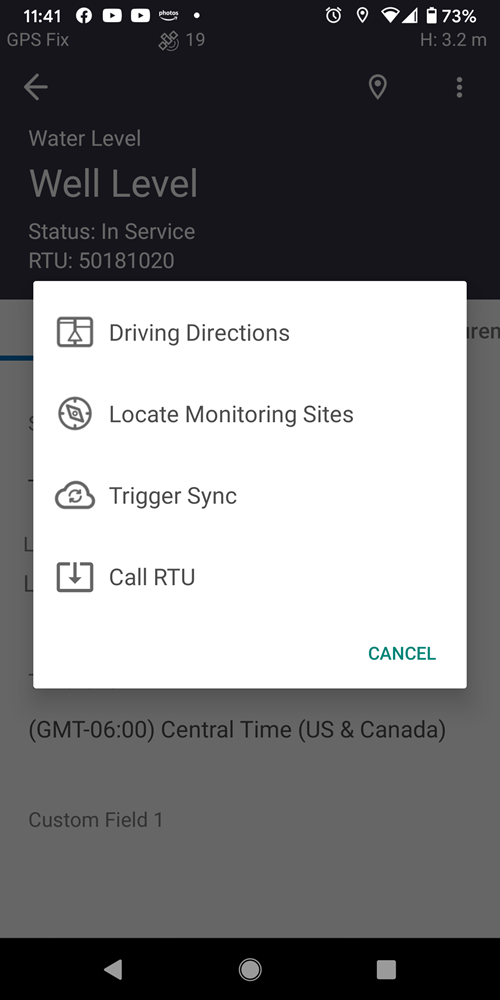
- Tap the more icon to access the Driving Directions, Locate Monitoring Sites, Trigger Sync, and Call RTU options. See Configure the RTU for more information on the Call RTU option.