Batch assigning field crews from the map
You can dispatch several work orders at once from the map and the Open Work Orders screen (see Batch assigning field crews from the Open Work Orders screen). This is useful when several jobs need to be dispatched based on geographical location.
- Go to the map and from the toolbar, click
 .
. -
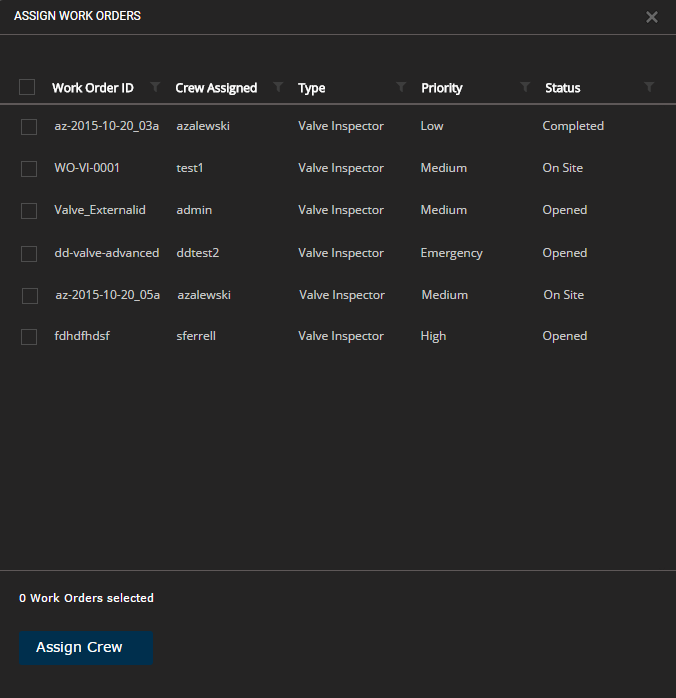
Draw a polygon around the area where you want to dispatch several work orders to a field crew. The Assign Work Orders screen appears:
-
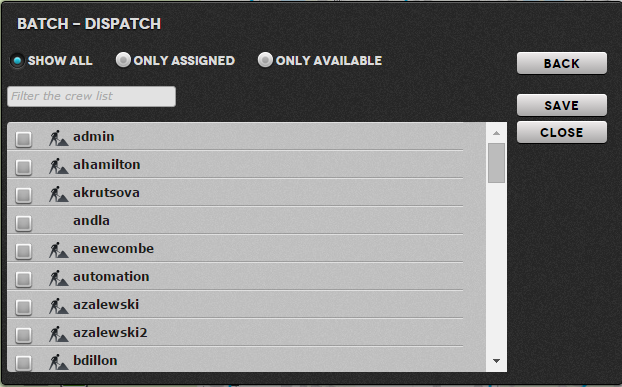
Select the work orders you want to assign and then click Assign Crew. The Batch - Dispatch screen appears:
-
The screen provides a couple of options for filtering the list of crews:
- You can view the list to show either All crews, only those that have no current work orders, or those that do have a work order assigned to them.
- You can filter by text matching to the crew name. This will start to filter the list as soon as you start typing.
- Select the crew and click SAVE. The crew will be assigned to the work orders.
Tip: The  icon indicates crews who have already been assigned work orders.