Collect Data using the Trimble Unity Mobile App
Workflow apps can be accessed on the Trimble Unity mobile app to collect data and perform other work activities like inspections. The user will progress the work order with actions defined by the specific workflow associated with the app. The following is an example of progressing the work order with a simple data collection workflow.
- On your mobile device, log in to your Trimble Unity mobile app.
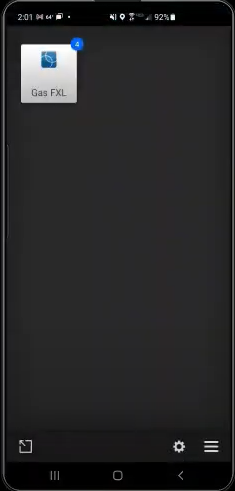
- Tap the workflow app you want to use.
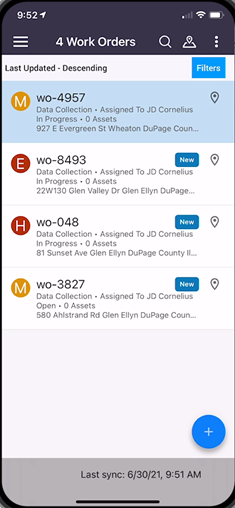
A list of all work orders assigned to your user are displayed.
- Use the filters, search, map view, or scroll the list, then tap the work order you want to open.
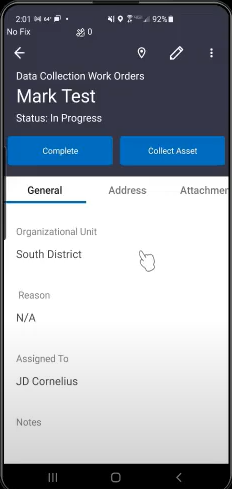
- Tap Collect Asset.
- Select a form from the list.
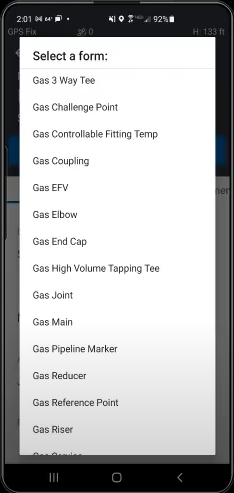
- Enter the work order information on the form pages. These correspond to the pages and fields within the pages that were configured in the Form Manager. See Create and Import Forms and Form Manager Fields for more information.
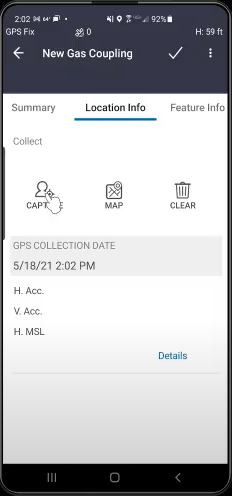
- When you are done entering the work order information, tap the check mark to save your changes.
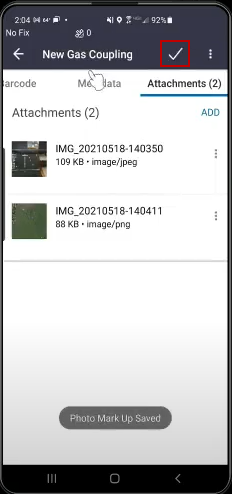
The saved form now shows on the work order.
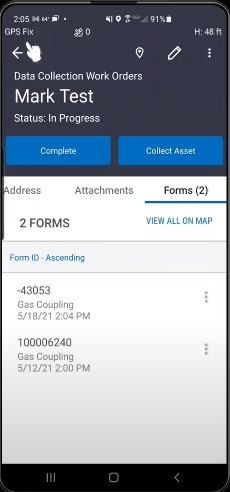
- Tap Complete to mark the work order as completed.
The next time you sync the mobile app, the completed work order will be removed from your work order list.
View Form History
The form history for an asset can be viewed across all apps.
- Select an asset from the map.
- Tap the Forms tab.
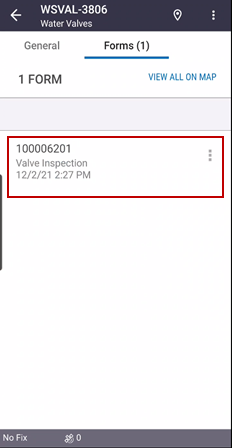
Any forms previously associated with the selected asset from any apps are listed.