Create and Manage Site Types
Site types are a classification for a monitoring site. There are many default site types, but site types can be managed and new site types can be created.
|
|
 PREREQUISITES:
- Click the Remote Monitoring Configuration icon in the upper-right corner.

- In the Site Types panel, click Manage to manage existing site types or Create Site Type to create a site type.

 Create Site Type
You can create a new site type from the app.
- Click Create Site Type on the Site Types panel.
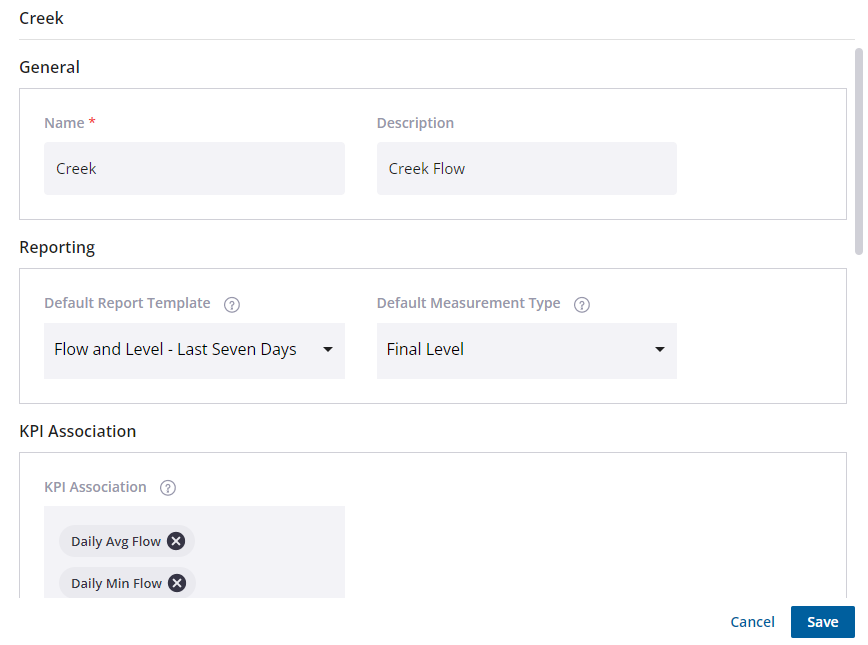
The Untitled Site Type page opens.
- enter a Name and Description in the General section.
- Select the default report template and measurement type in the Reporting section. Use these settings to control which report or measurement is launched when monitoring a site’s View Default Report and View Default Measurement commands are selected. See Graph Measurements on a Site for more information.
- Optionally, select the available KPIs for the site type from the KPI Association drop-down list. KPIs are applied to the default measurement type.
- Optionally, add any custom fields for any user-defined fields. If any of these contain content, this is what displays in the app as the label for the field.
- Click Save to save the new site type.
|
|
 Manage
You can manage existing site types from the app.
- Click Manage on the Site Types panel.
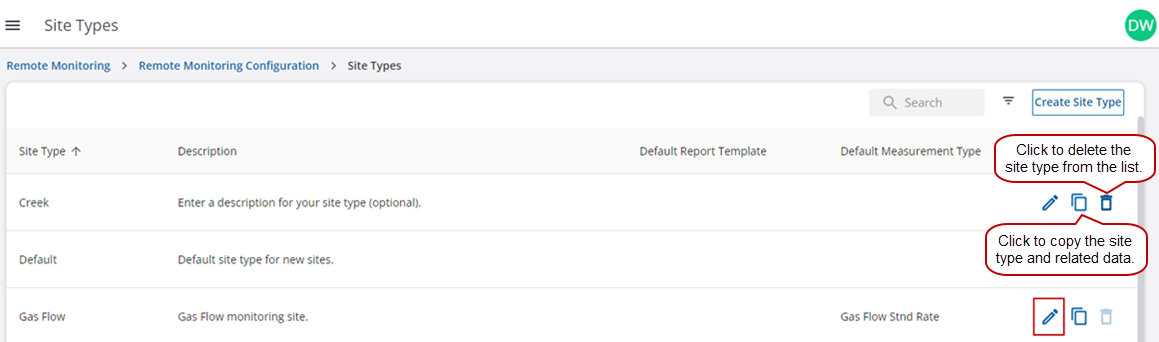
- From the list of site types, click the edit icon.
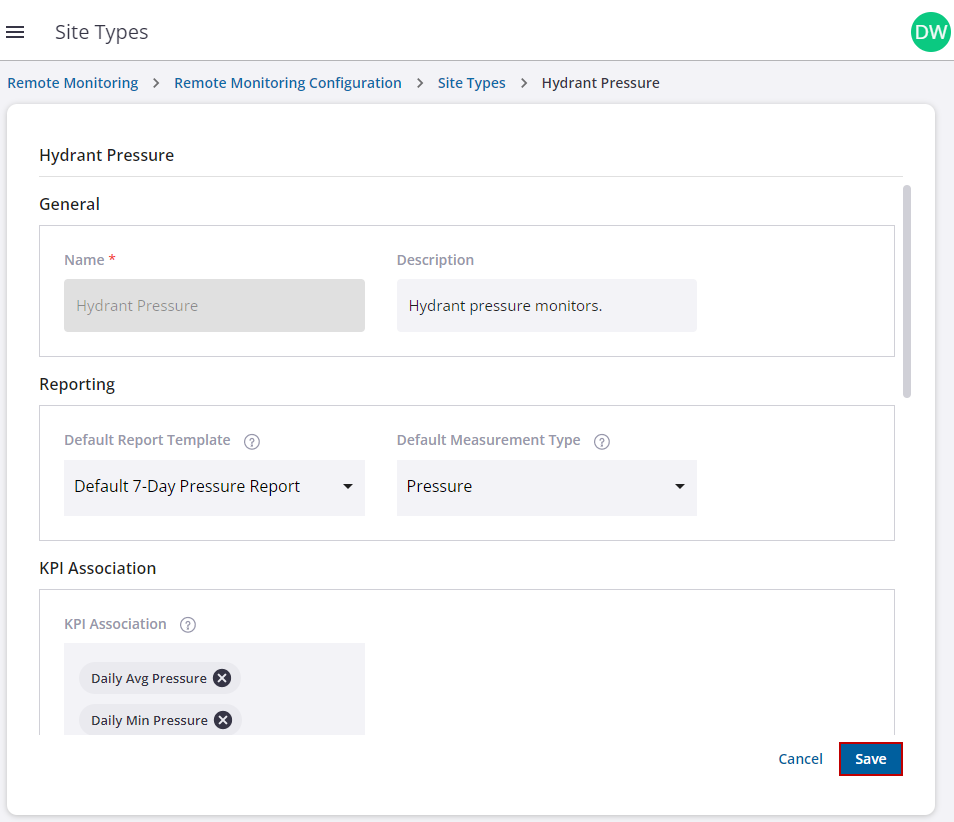
- Make updates to the site type, such as the description, default report template or measurement type used, and associated KPIs.
- Optionally, add or modify any custom fields for any user-defined fields. If any of these contain content, this is what displays in the app as the label for the field. For example, Custom Field 1 could be renamed “Hydrant ID.”
- Click Save.
- Click the copy icon to clone a site type and create a new site type.
- Click the delete icon to remove a site type and the associated information.
 NOTE: Only site types you have created can be deleted. Any default site types cannot be renamed or deleted and the delete icon is disabled.