About the Work Order Details
Work order details are available for each work order. These include general information about the status, priority, and assigned to user, as well as any forms or attachments, the associated RTUs, and an audit history.
- Select a work order from the list or the map.
The work order details panel opens and the selected work order is highlighted on the map.
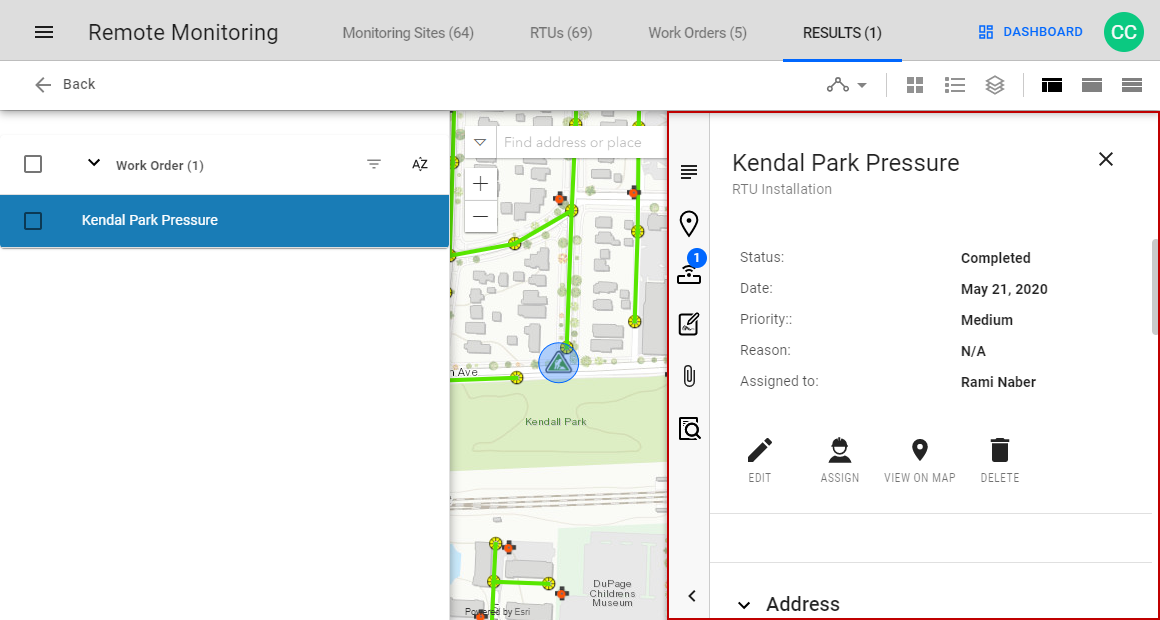
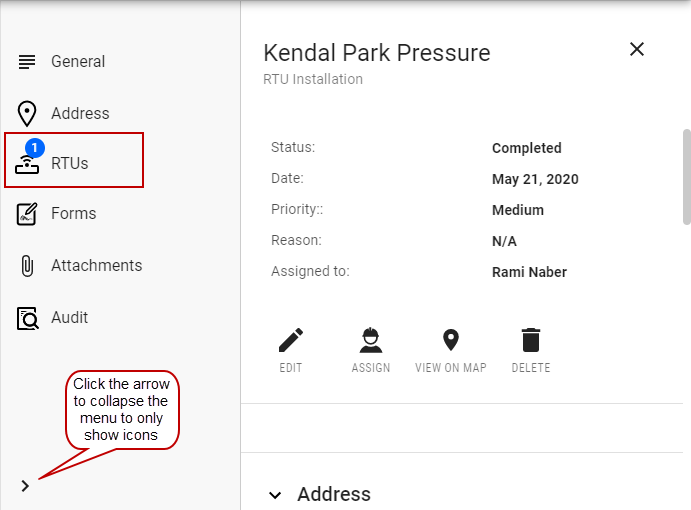
- Click the name or icon on the side menu to automatically scroll to the section, or scroll through the site details with the scroll bar or mouse.
 NOTE: The numbers on certain icons tell the number of available details in those sections. For example, one RTU.
The General section includes information about the work order, including status, date, priority, reason, and the assigned to user.
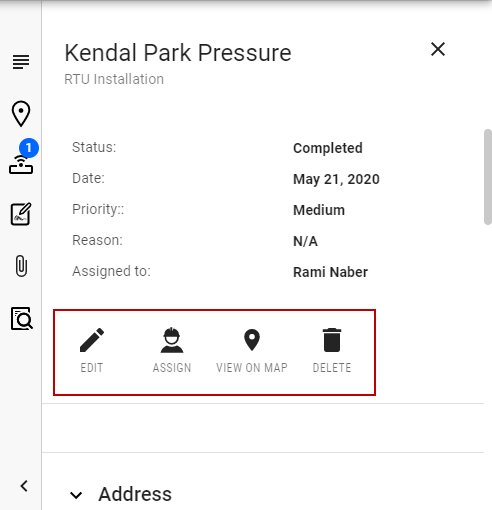
- From the General section, click an action icon.
- Edit: Edit the work order, including the address, priority, and associated RTU.
- Assign: Assign the work order to a different user.
- View On Map: Highlight the selected work order and center the map on its location.
- Delete: Delete the work order.
The Address section shows the address of the work order.
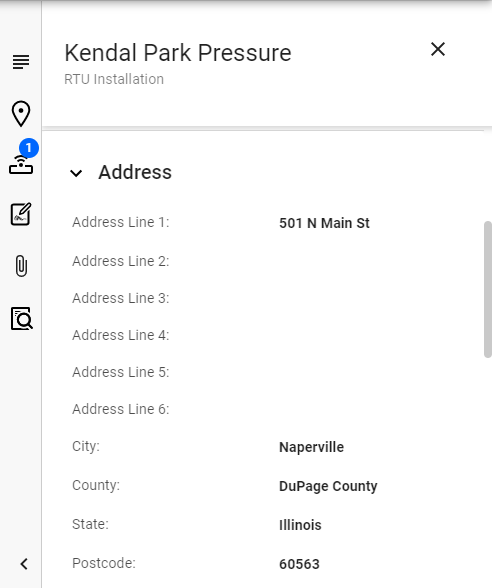
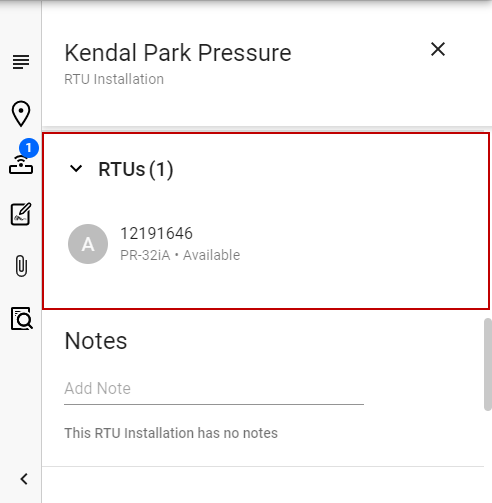
The RTUs section shows the RTUs attached to the work order.
- Click an RTU to view its details. See About the RTU Details for more information.
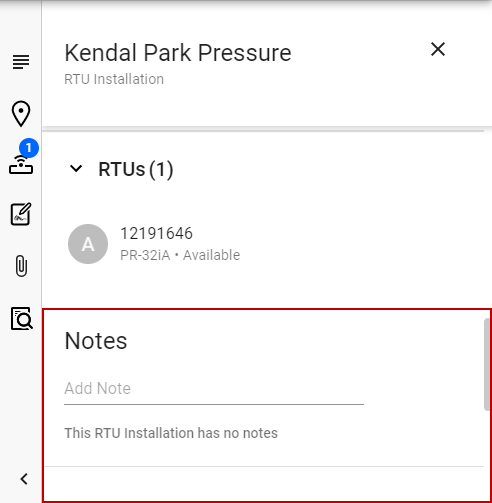
The Notes section shows the notes that have been added to this work order.
- Click Add Note to add a note to the work order.
The Forms section shows any forms attached to the work order.
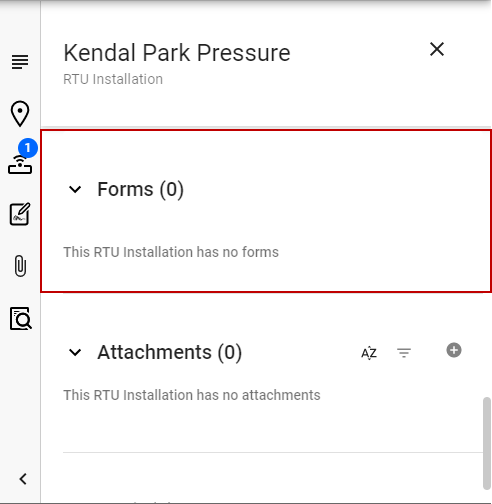
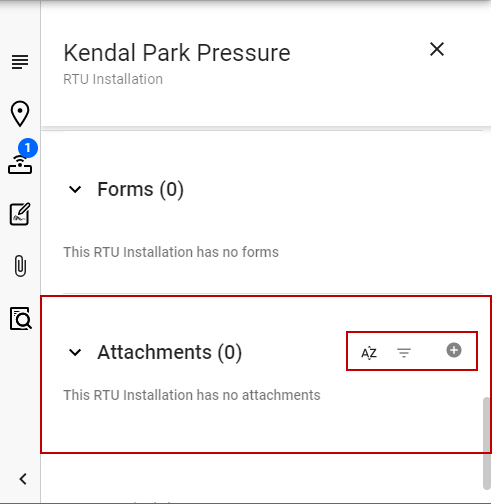
The Attachments section shows any attachments on the work order.
- Click the plus icon to add an attachment. Attachments are viewable from the mobile app, and can support all standard file formats including images and PDFs. This feature is typically used to attach sensor installation instructions.
- Click the sort or filter icons to sort or filter the list of attachments.
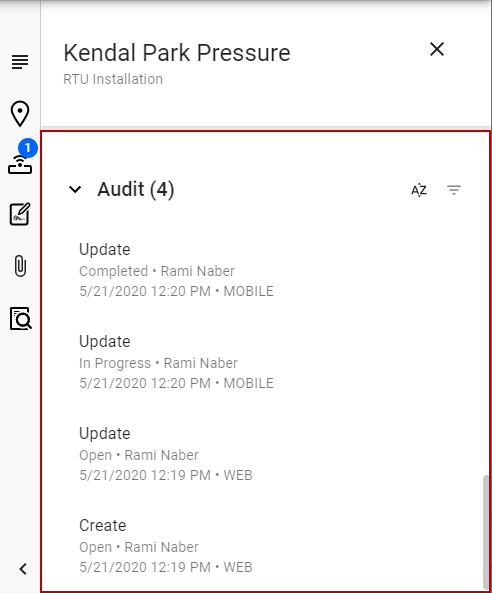
The Audit section shows a history of changes to the work order.
- Click the sort or filter icons to sort or filter the list of audits.