Create Notification Groups for Alarms
Alarms can be configured to send alarm notifications sent by email to specific users. Alarm recipients and notification groups can be configured from the Notifications Groups page.
|
|
 PREREQUISITES:
|
|
 IMPORTANT: When running Telog Enterprise, alarm notification groups can be configured and require alarm acknowledgments. However, editing these groups is not supported by Unity. An error message displays when trying to edit a notification group with alarm acknowledgments enabled.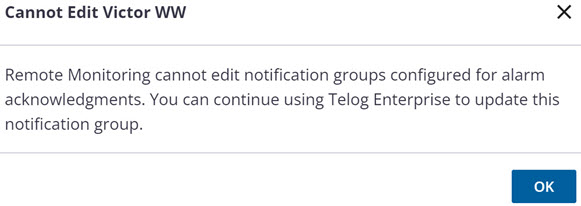
- Click the Remote Monitoring Configuration icon in the upper-right corner.

- In the Notification Groups panel, click Manage to manage existing notification groups or Create Group to create a group.
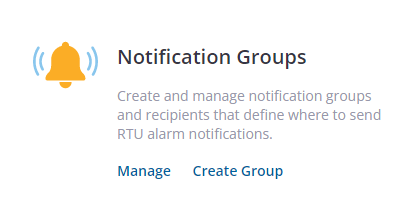
 NOTE: Notification groups are used during alarm configurations to specify what group of recipients will receive email notifications when alarms are triggered by the RTUs.
 Create Group
You can create a new notification group from the app.
- Click Create Group on the Notification Groups panel.
- In the New notification group panel, enter the Group Title in the field and click Save.
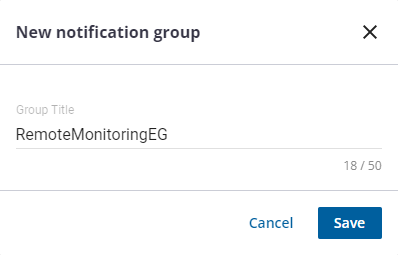
The new notification group is listed in the Manage Notification Groups panel.
- Click the more icon and select Edit.
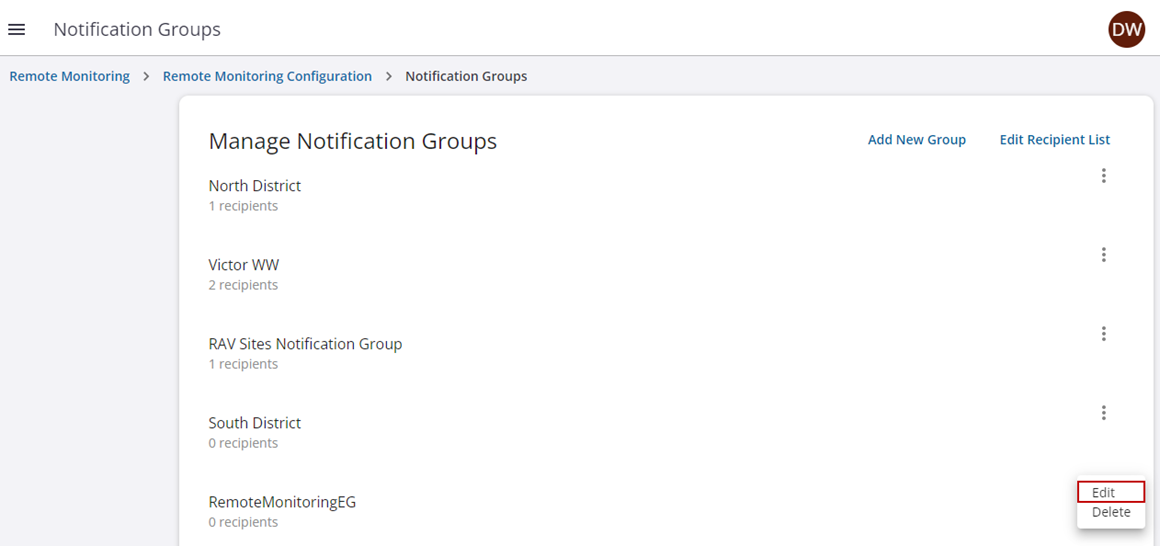
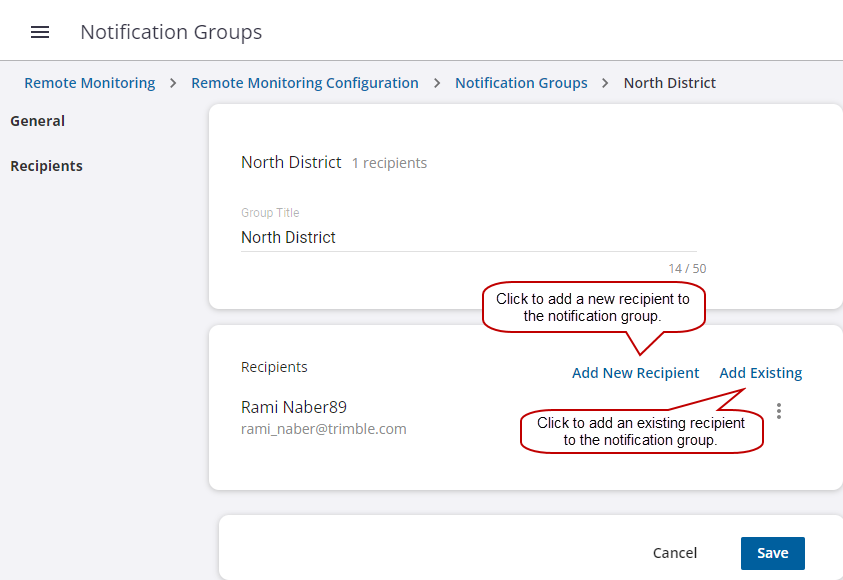
- Edit the group title or add recipients to the new notification group. If a user is added to the group and needs to be removed, click the more icon to the right of the user and click Remove. This will only remove them from the group.
- Click Save.
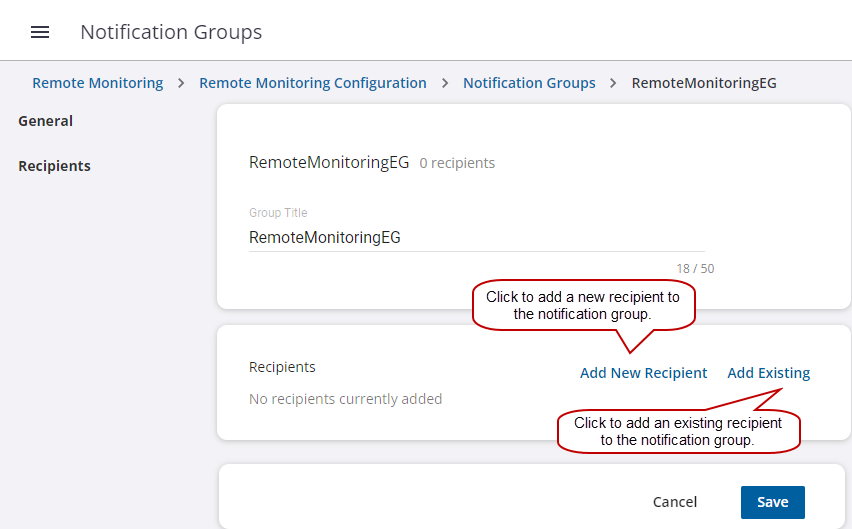
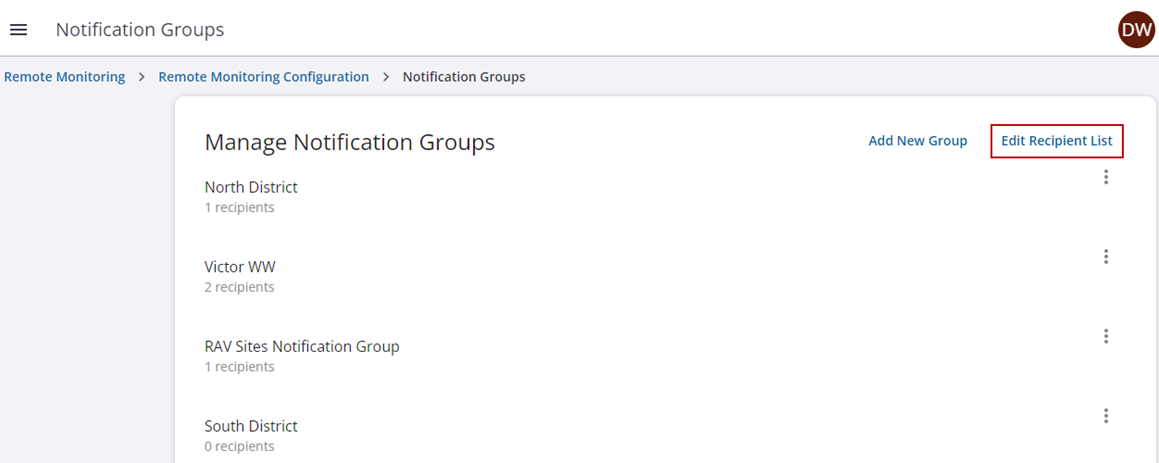
- Alternatively, click Add New Group from the Manage Notification Groups panel to add a new notification group.

- While editing your new notification group, click Add New Recipient to create a new recipient.
- Click Save.
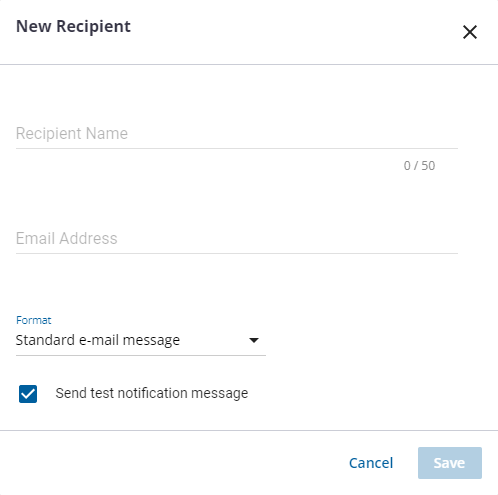
 BEST PRACTICE: To send a text message to a phone instead of sending an email, make sure to choose the Short email Message format type and use the following format for the email address: phonenumber@mobilecarrierSMSGateway. For a list of mobile carrier SMS Gateways, click here.
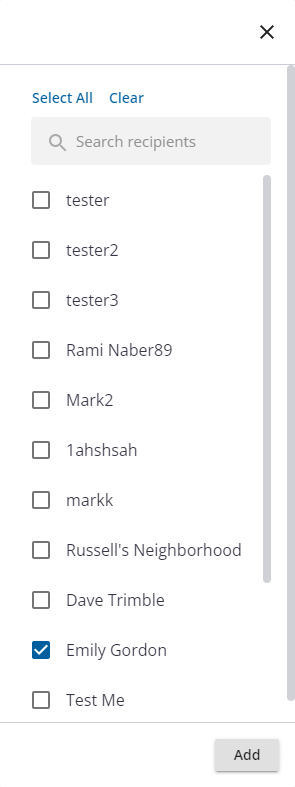
- Click Add Existing to add one that already exists.
- Select the recipient(s) and click Add.
Manage
You can manage existing notification groups from the app.
- Click Manage on the Notification Groups panel.
- From the list of notification groups, click the more icon and click Edit.
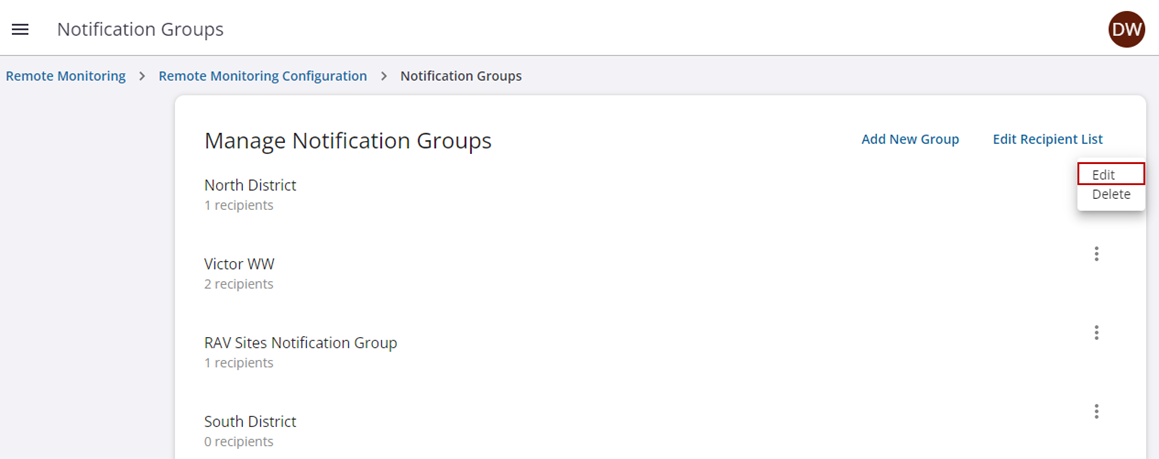
- Make updates to the notification group and click Save.
NOTE: If a user is added to the group and needs to be removed, click the more icon to the right of the user and click Remove. This will only remove them from the group.
- To manage your recipient list, click Edit Recipient List in the Manage Notification Groups panel.
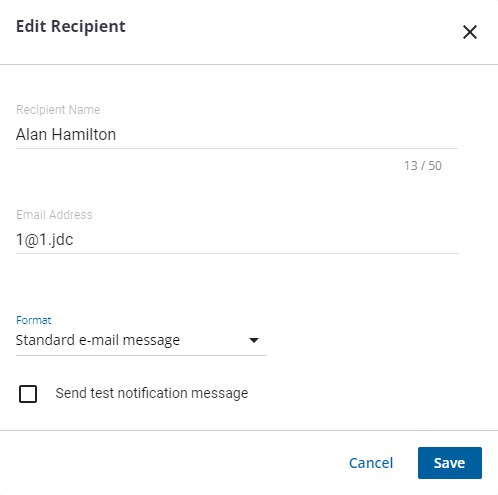
- Click the more icon next to the recipient you want to edit and click Edit.
- In the Edit Recipient panel, make your edits for the recipient and click Save.
- Click Add New Recipient on the recipient list page to add a new recipient.